Before you start
A draw is a release where fans enter for a chance to buy, and winners are picked once entries close. If you want the background first, read what a Shopify draw is. This guide assumes you have already decided to run one and want the exact order of operations.
Have these ready before you open the app:
- The Shopify product, with every size or variant created and the stock you will release for each one.
- A date and time for entries to open, and one for them to close. The countdown on your product page builds the hype, so pick a window you can announce.
- A plan for telling people. The button lives on your product page, so every post, email and story should point at that page.
- A decision on how winners pay. You choose this when you create the release, and it changes what fans see at entry.
This is the same sequence the Pink Pack drop ran on shop.travisscott.com: install, pick the product, set the rules, open the draw, filter and select, then ship.
Run the draw, step by step
-
Install SuperSwipe
Install SuperSwipe from the Shopify App Store. It is free to install and there is no contract. The install connects the app to your store and theme, and you run everything from the SuperSwipe admin inside Shopify.
-
Put the button on your product page
Add the SuperSwipe block to the product page in the theme editor. It inherits your fonts, colors and layout. Then open Customize Button Theme in Settings to set the button and modal colors, upload your own font, and choose where the Protected by SuperSwipe line sits. Every edit previews live and the storefront updates in about a minute. See button theme for everything you can change.
-
Create the release
Select the product you are running the draw on, set the stock for each size, and set when entries open and close. The numbers you set are the numbers fans compete for, so get the per size numbers right here. A scheduled release opens on its own at the time you set. If you have physical stores, you can also let winners pick up at one of your stores instead of shipping.
-
Choose how winners pay
Every release starts with one choice. Standard locks a payment method at entry and charges winners automatically the moment the draw ends. Pay After takes a form with no card, and winners get a private checkout link by email and SMS and pay while supplies last. Standard can also collect an optional entry fee of your own up front. The release modes page compares the two, and our guide to charge on win vs Pay After helps you pick.
-
Keep bot protection on and add your rules
Every drop runs behind the filtration wall, with no captcha and nothing for fans to install. The defaults already stop the obvious abuse. Per drop you can turn on more: limit entries to the regions you ship to, filter throwaway accounts, and catch duplicate or linked entries. See bot protection for the five filters. If you want to reward loyal customers, VIP access lets you paste VIP emails so their entries are prioritized in selection, or send a private checkout link that reserves their pair for 72 hours. Pick the VIP mode when you set up the drop, because it locks once winners exist or links go out.
-
Open entries and share the page
When the release goes live, the Enter Draw button appears on your product page with a public countdown. Fans enter inside your existing storefront, with no redirect and no account to create. Share the product page link everywhere you announce the drop.
-
Watch the release dashboard
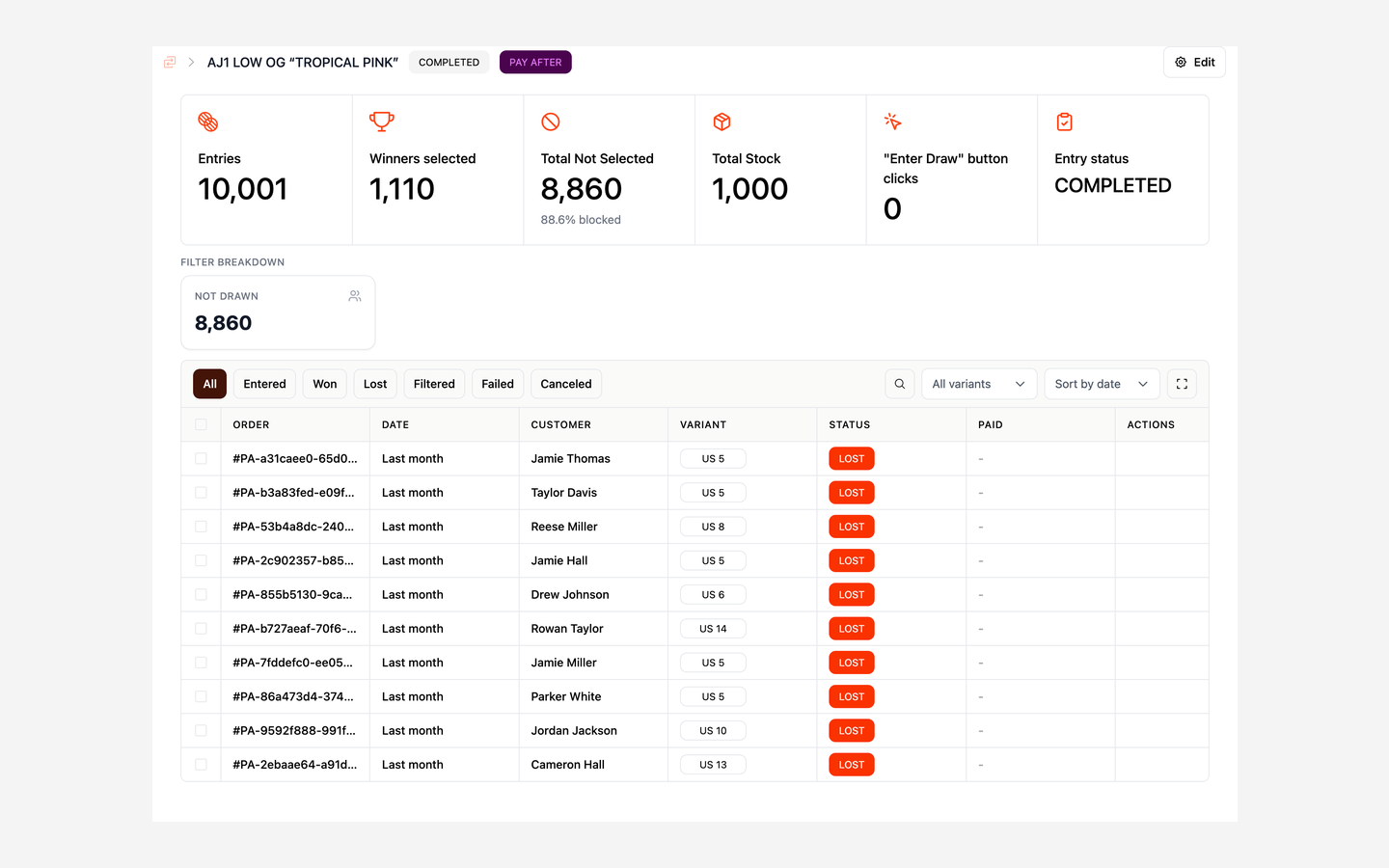
Open the release in the release dashboard. Entries, winners selected, total not selected with the percentage blocked, stock, and Enter Draw clicks update every couple of seconds with no refresh. Every entrant sits in one table you can filter and search, and every filtered entry shows the reason it was caught. If the wall caught a real fan by mistake, you can reinstate the entry from there. Entries against stock for every size show you where demand landed.
-
Close entries and run the live draw
When the window closes, run winner selection right away or let it run on schedule. On your product page the button swaps to a live selection feed, and shoppers watch a real percentage tick to 100% as entries are sorted, bots are stripped out, and winners are drawn at random from the clean pool. Every clean entry has the same odds, and the store cannot tilt the draw. Winners and the fans who missed out see the same feed at the same moment. See the live draw for how selection runs.
-
Collect payment and fulfill
In Standard, cards are charged the moment selection runs and winning orders land in Shopify ready to fulfill. If a card fails, the dashboard lets you retry the charge or replace the winner. In Pay After, winners get a private checkout link by email and, with SMS on, by text. Links go out in payment waves sized to the stock you still have. Each wave sends more links than units left, by an oversend factor you set when you create the drop. SuperSwipe then waits 20 minutes from the last link sent, checks what is still unsold, and sends a fresh wave to the next fans in line. The moment stock hits zero, link sending stops. SMS payment links are on by default, and winners get at most one text for the draw they entered.
-
Review the results
Once the release shows Completed, the dashboard breaks the drop down by variant: stock, entries, winners selected, and how many actually paid. Every filter decision is logged with its reason, so you can show any fan exactly why they got through or did not. Those numbers are the starting point for your next release.
What fans see
Your announcement has to match what fans go through. How it works walks through a standard draw screen by screen. In short:
- The Enter Draw button on your product page. Same page, same brand. Fans never leave the storefront.
- Terms in plain English before they confirm. In Standard: $0 charged today, full price only if their entry is picked. In Pay After: no payment required to enter, and a private checkout link by email if selected, first come, first served while supplies last. The Pay After entry is a short form with name, email, phone, address and size, and no card at all.
- In Standard, a native order confirmation page with an Entry Status: Entered banner and $0 paid today, then an entry receipt from your store that says what happens next.
- Their entry status on their order page, with the close time, and the option to cancel anytime.
- Live progress on the product page when the window closes, as the filters run and winners are picked.
- A winner email branded from your store. In Standard this is the moment the card is charged, and the order page flips to You Were Selected. In Pay After the winner email carries their private checkout link, and with SMS on, so does a text.
- In Standard, everyone else gets a calm email confirming the draw closed and their card was never charged. Their order page shows the closed draw and $0.
After the draw
Winning entries become regular Shopify orders. Fulfillment runs through Shopify, so pick, pack and ship the same way you do for any other sale. In a Pay After draw, winners pay through their link in your own Shopify checkout, and live inventory is the referee, so paid orders can never exceed real stock.
Fans who were not selected are never charged. There is no refund flow and no card capture. Their entry is simply closed out.
Three things worth reviewing while the drop is fresh:
- Entries and Enter Draw clicks, to see how many people your announcement actually reached.
- Blocked entries and the reasons behind them. The percentage blocked tells you how much of the demand the wall filtered out, and none of those entries were drawn.
- Sell through per size, meaning winners selected against how many paid. In Pay After it also tells you whether the oversend factor was right.
Mistakes to avoid
- Announcing before the button is live. Button theme changes take about a minute to reach the storefront. Load the product page yourself and see the button before you post.
- Payment terms that do not match the mode. Fans agree to terms before they enter. If you picked Pay After, do not tell them a card will be charged on the win. If you picked Standard, say that $0 is charged today and the full price only on a win.
- Stock not set per size. The stock you set drives how many winners are picked, and the dashboard tracks entries against stock for each size. A wrong number on one size means winners for pairs you do not have, or pairs left on the shelf.
- Turning filters off to get more entries. Keep the defaults on and read how to stop bots on Shopify product drops before you loosen anything.
- Changing the rules mid draw. VIP mode locks once winners exist or links go out, and fans have already entered against the stock and terms you announced. Decide before you open.
- Taking entries you cannot ship. If you only ship to certain regions, turn on the location filter so fans elsewhere are not drawn for a pair they cannot receive.
What it costs
SuperSwipe is free to install and there are no contracts. Fans never pay a SuperSwipe fee to enter. The store pays 5% per selected entry, so you pay only when the draw produces a winner. Fans who are not selected cost nothing, and there is no subscription that sells fans better odds. The pricing page has the full comparison.
One fee, billed to the store: 5% per selected entry. Fans pay nothing to SuperSwipe, and there is nothing to pay up front.